
Integrate PagerDuty with StatusHub V2
Use the guide below to configure PagerDuty with StatusHub.
In StatusHub
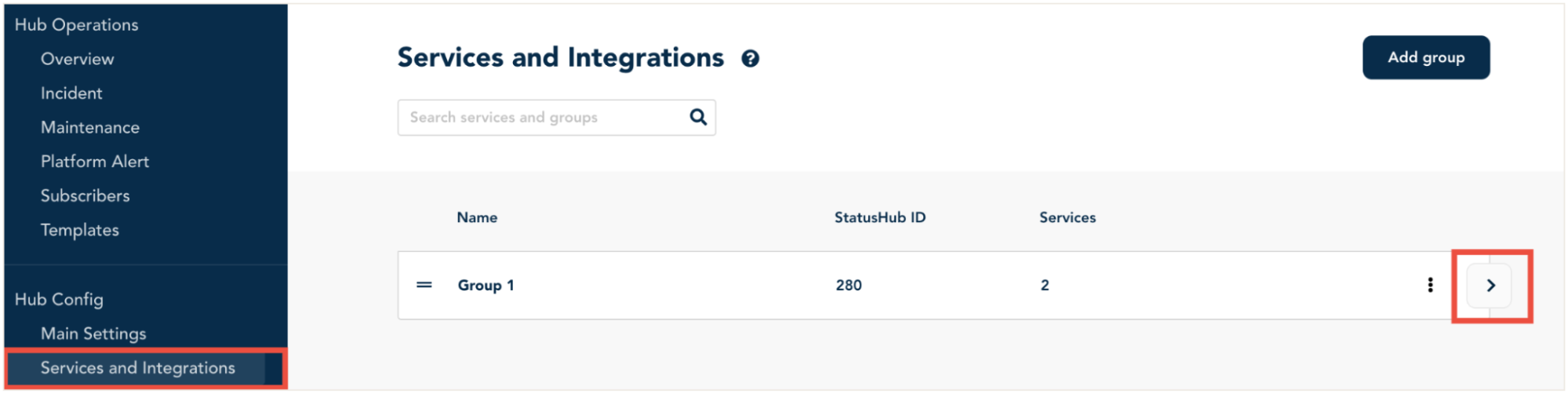
To set up PagerDuty on your StatusHub page, navigate to Hub Config and click Services and Integrations.
This will bring you to the edit status site page. Once here, you will need to select the "Services and Integrations" option on the side menu.
Click the arrow on the right.
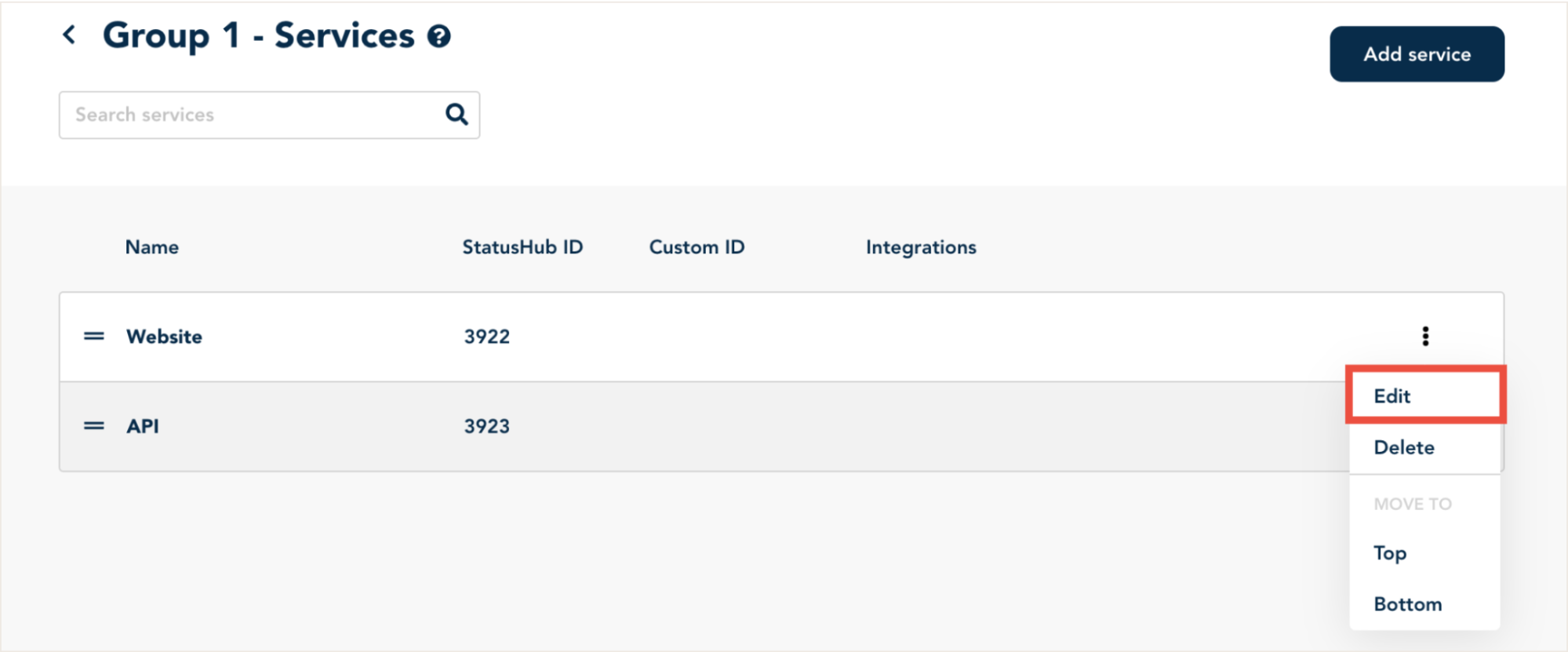
Once these options are visible, click the three-dot icon on the right and choose Edit from the drop-down menu.
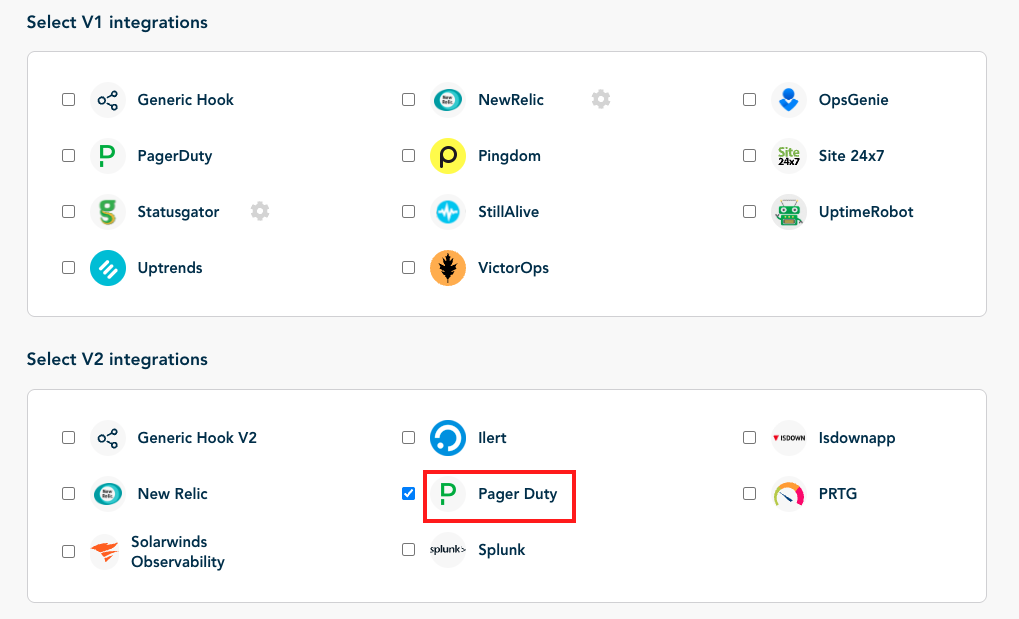
Under Edit services, select V2 Integrations and choose PagerDuty, then save.
After you select the PagerDuty option, we will generate a webhook for you to use at PagerDuty.

The link on your side may vary slightly from the one in the image above. Always use the Services & Integrations section when creating a new integration with a supported third-party provider.
Once you have done this your "new service" i.e., PagerDuty will appear under the group you previously selected. With the webhook URL, we will need it later underneath.
In PagerDuty
The following are the steps required in PagerDuty to complete the integration.
Open "Integrations" and choose "Generic Webhooks (v3)" from the dropdown menu.

You will see the screen below, next click on "New Webhook".

You will now see the form as shown in the screen below.
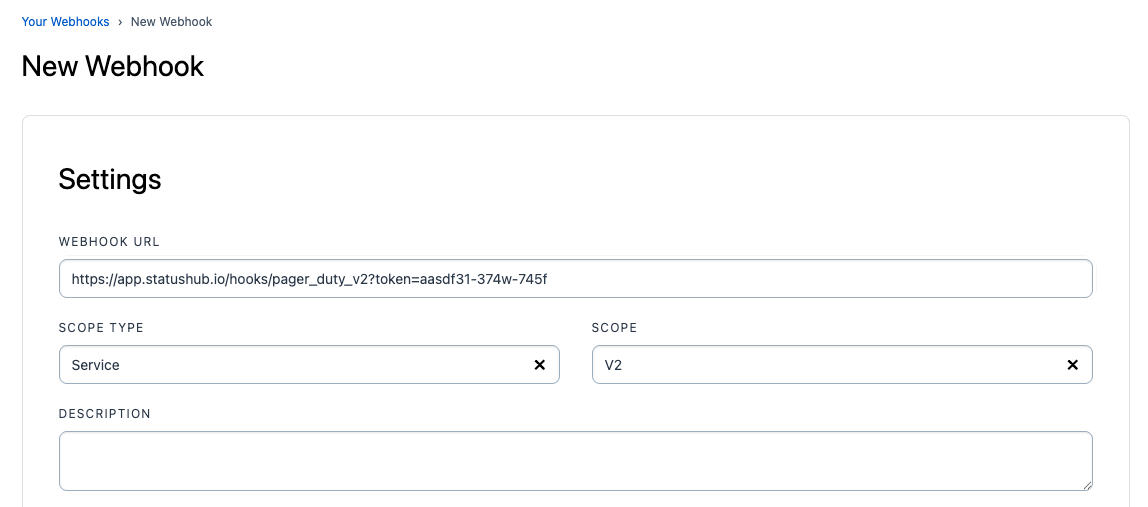
At the top you must input the webhook URL from the final step of the process in StatusHub.
Scope type and Scope allow you to set the relevant service in PagerDuty.
You need to check the boxes for:
- incident.reopened
- incident.resolved
- Incident.triggered
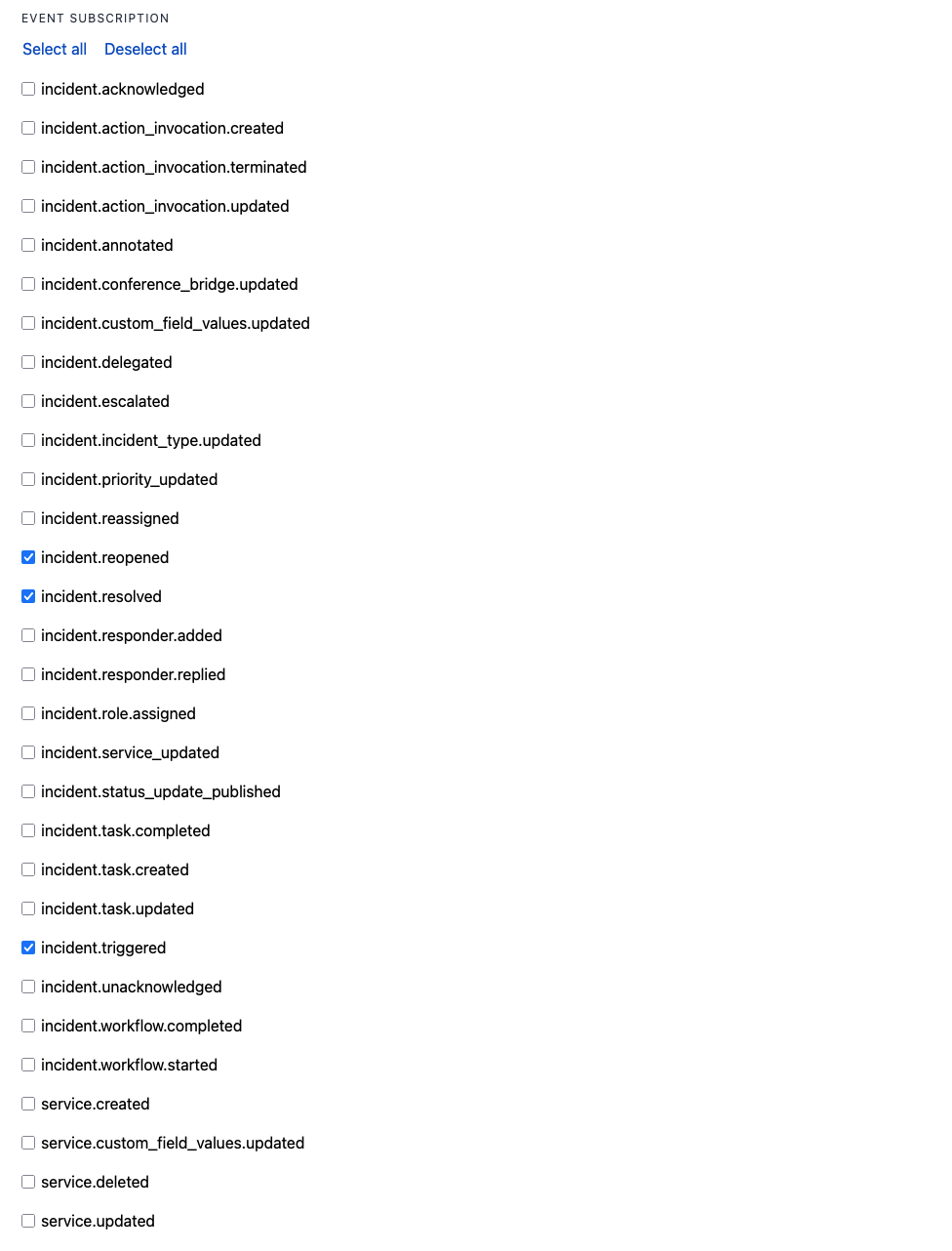
Then finally click on "Add Webhook" to submit the form and complete the process.
Optional test
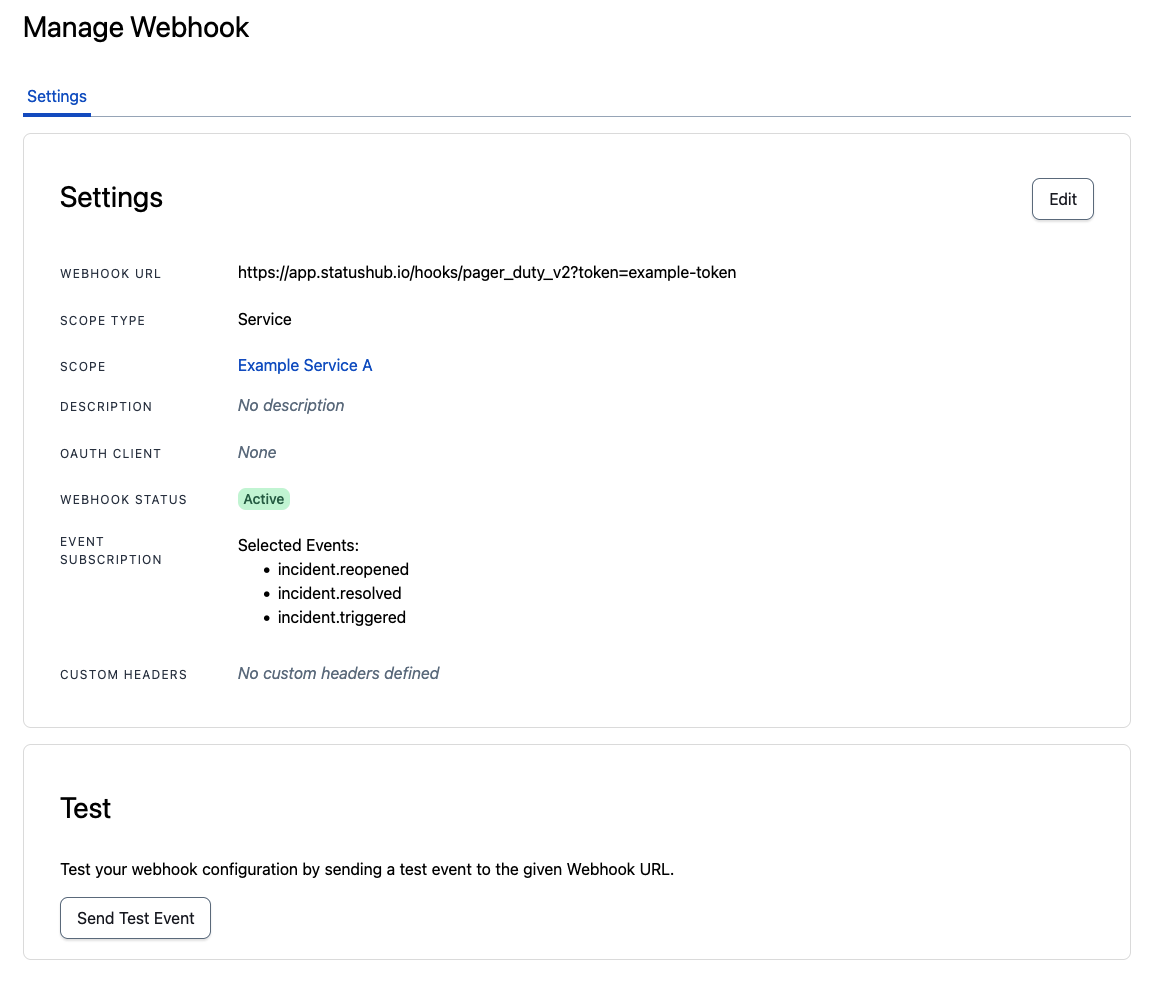
It is possible to perform basic test with the “Send Test Event” button and this test will not result in event creation in StatusHub.
However, please note that this test will succeed even if the token in “WEBHOOK URL” is invalid or the StatusHub service has PagerDuty integration disabled.
If you have any questions please contact us.